
Lodge / Hotel / Guest House
Update rooms, amenities, stay requests, payment methods, photos, and hours so guests can browse rates and request stays.
Learn how to keep your Funafuna business page accurate by updating your business information, hours, photos, services, rooms, products, menus, amenities, promotions, and accepted payment methods.
You need a claimed business page before you can use the vendor dashboard. If you have not claimed yet, start with Claim Your Business. If your business is not on Funafuna yet, Request a Free Listing first.
Keep your listing fresh — accurate contact details, photos, and hours help customers find you and message you on WhatsApp with confidence.
After you claim your business, manage your listing from the Vendor Portal. Sign in and open your vendor dashboard from your profile or account menu.
The left-side navigation includes the tools you need to keep your page up to date:
You may also see vendor tools such as Vendor Dashboard, Manage Listings, Edit Business, Hours, and Photos from your profile.
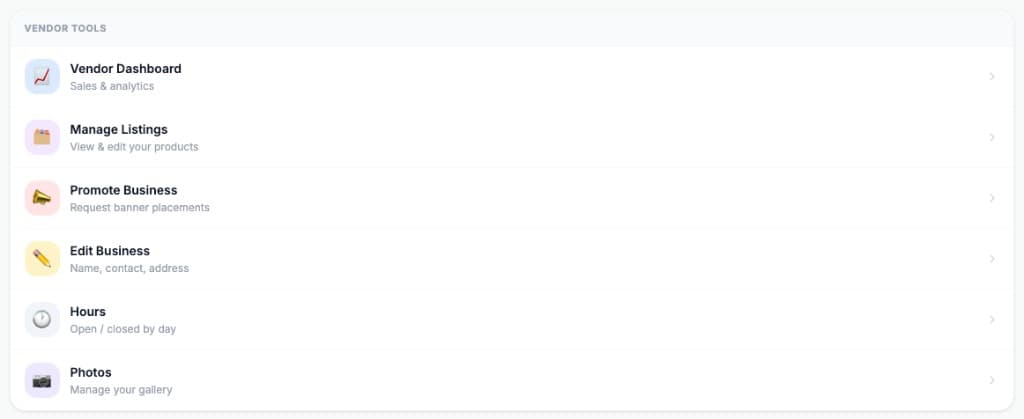
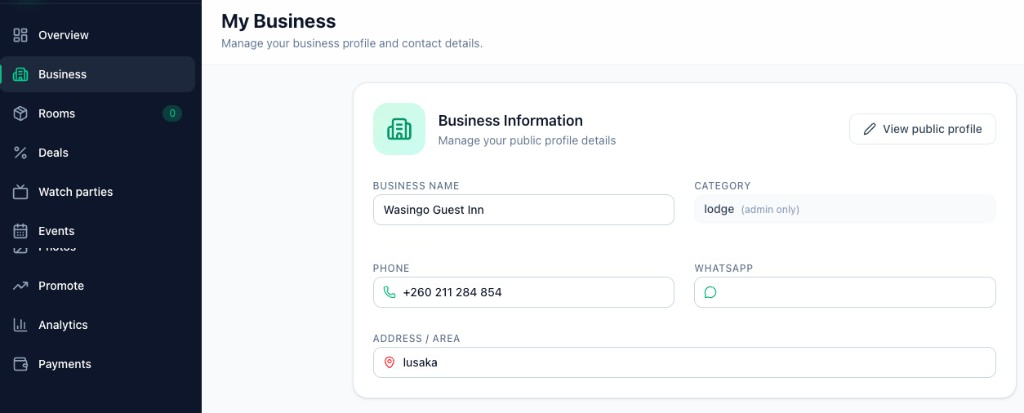
Open Business (or Edit Business) to update the details customers see on your public page:
Tap View public profile at any time to preview how your listing looks to customers.
When you are finished editing, scroll down and click Save changes.

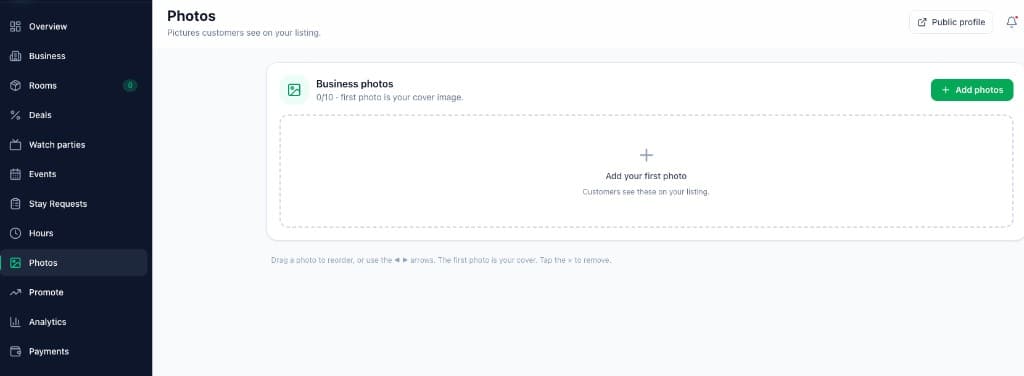
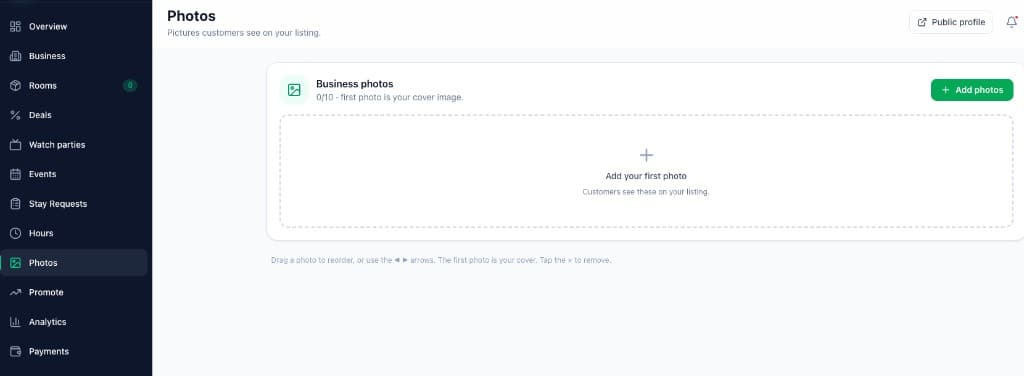
Open Photos to manage the images on your public listing.
Tap + Add photos to upload from your phone or computer. Drag to reorder, or use the arrows to move your cover image to the first spot.
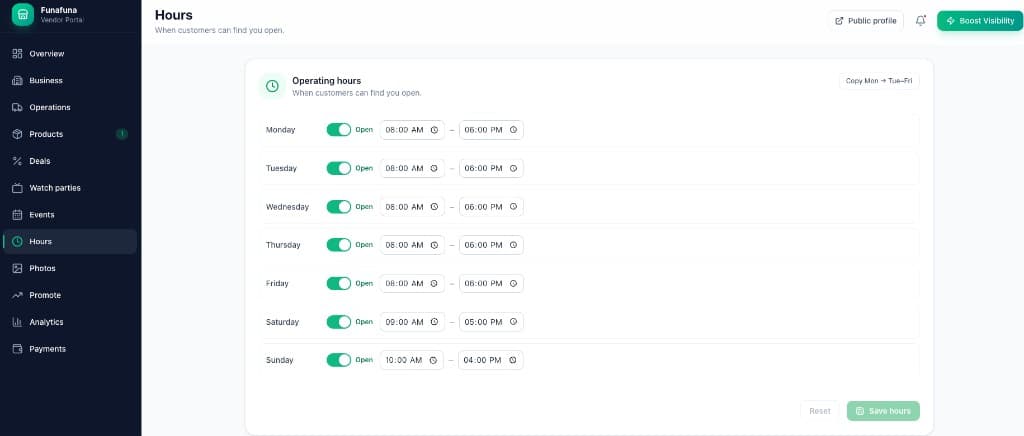
Open Hours to show customers when you are open.
Accurate hours help customers visit at the right time and reduce missed WhatsApp messages outside your working day.
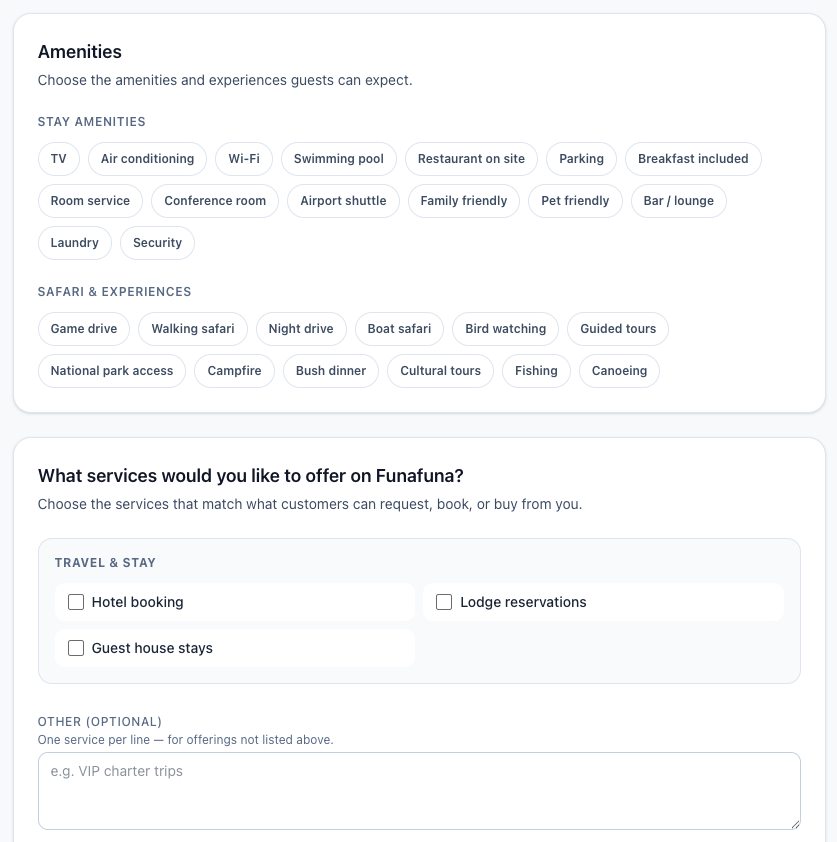
If you run a lodge, hotel, guest house, motel, or backpackers, open Rooms to list room types, nightly rates, and booking options.
Under Amenities, choose what guests can expect — for example Wi-Fi, parking, breakfast included, swimming pool, restaurant on site, airport shuttle, family friendly, pet friendly, bar / lounge, laundry, and security.
Under Safari & Experiences, add options such as game drive, walking safari, night drive, boat safari, bird watching, guided tours, national park access, campfire, bush dinner, cultural tours, fishing, and canoeing.
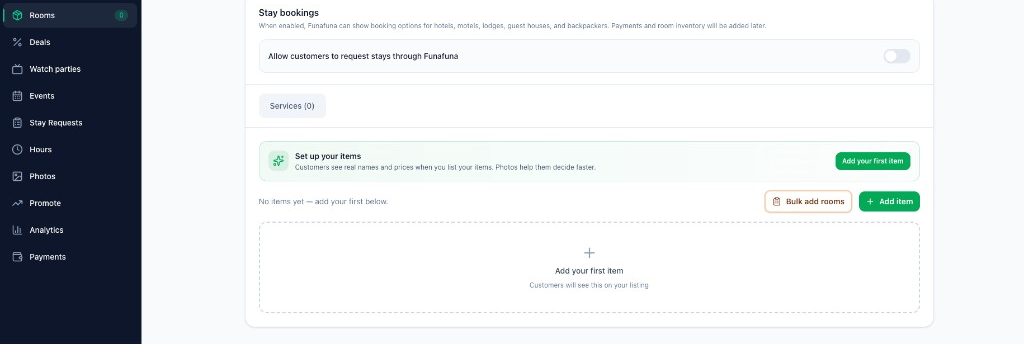
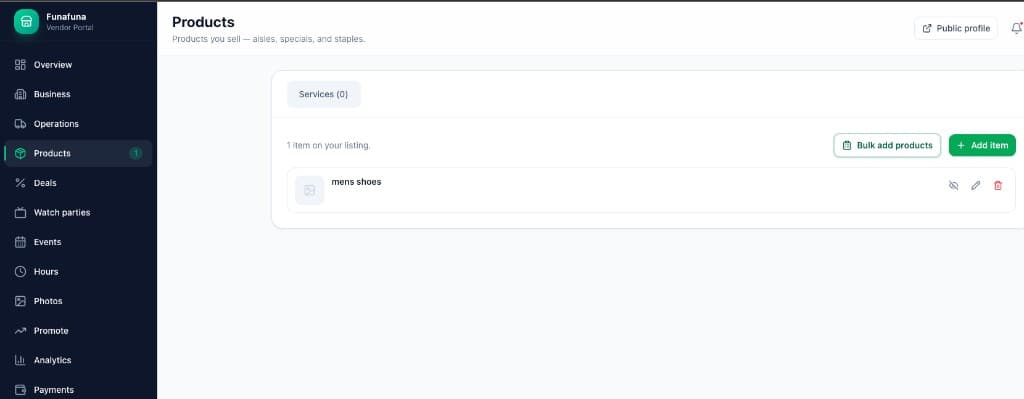
Grocery shops and retail businesses can open Products to list items customers may browse before visiting.
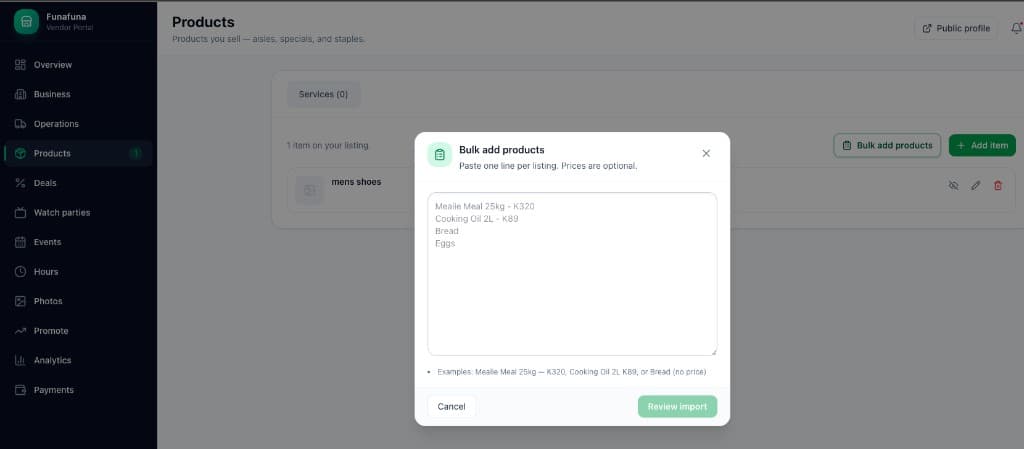
Add products one at a time with + Add item, or use Bulk add products for faster setup. Paste one line per product — prices are optional. Examples:
Mealie Meal 25kg - K320Cooking Oil 2L - K89BreadEggsCustomers can see product names and prices on your listing. You can hide, edit, or remove items anytime from the products list.
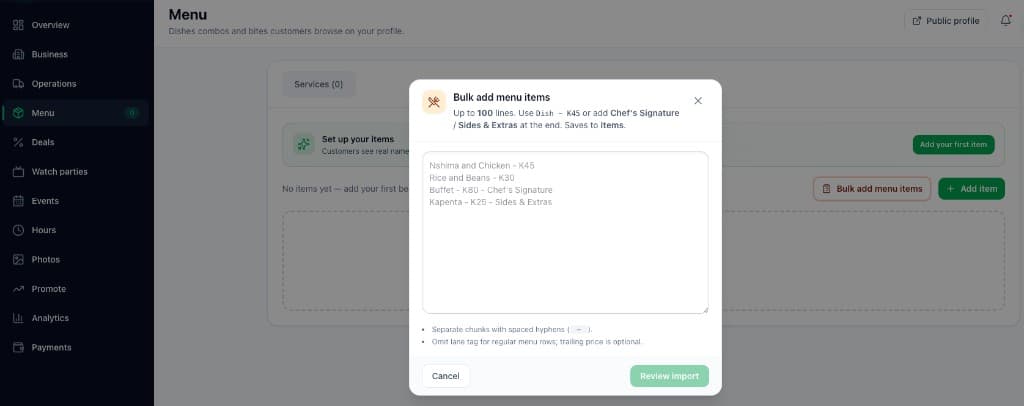
Restaurants and food vendors can open Menu to add dishes, combos, and prices customers browse on your profile.
Use Bulk add menu items to paste several lines at once. Examples:
Nshima and Chicken - K45Rice and Beans - K30Buffet - K80 - Chef's SignatureKapenta - K25 - Sides & ExtrasAdd a menu section or tag at the end of a line when helpful — for example Chef's Signature or Sides & Extras. Tap Review import to confirm before saving.
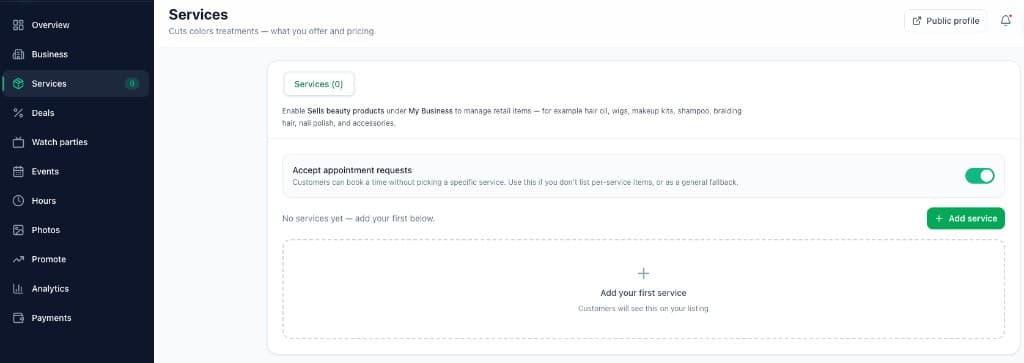
Salons, barbers, mechanics, tailors, clinics, and other service businesses can open Services to list what you offer and your pricing.
Examples you might add:
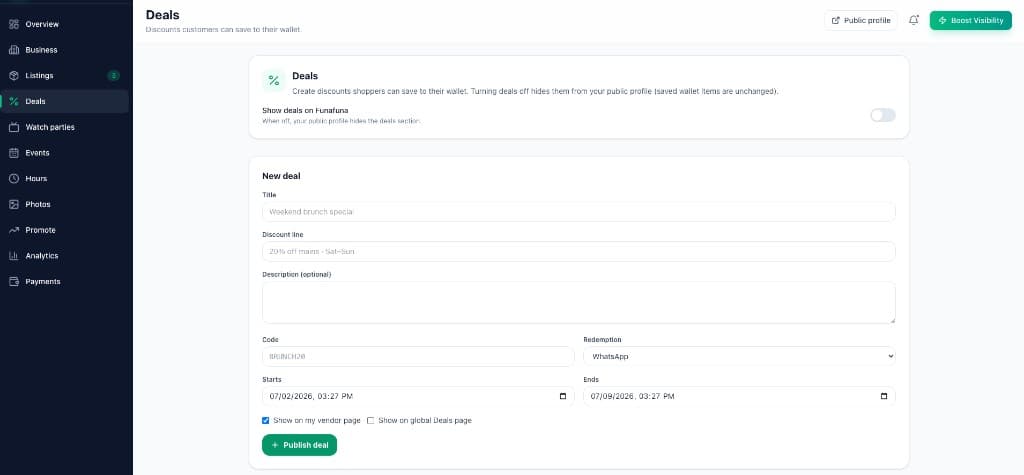
When available, use Deals to highlight specials customers should know about — for example a weekend discount, combo meal, or seasonal offer. Turn Show deals on Funafuna on, then create a deal with a title, discount line, optional description, code, and redemption method (such as WhatsApp). Tap Publish deal when you are ready.
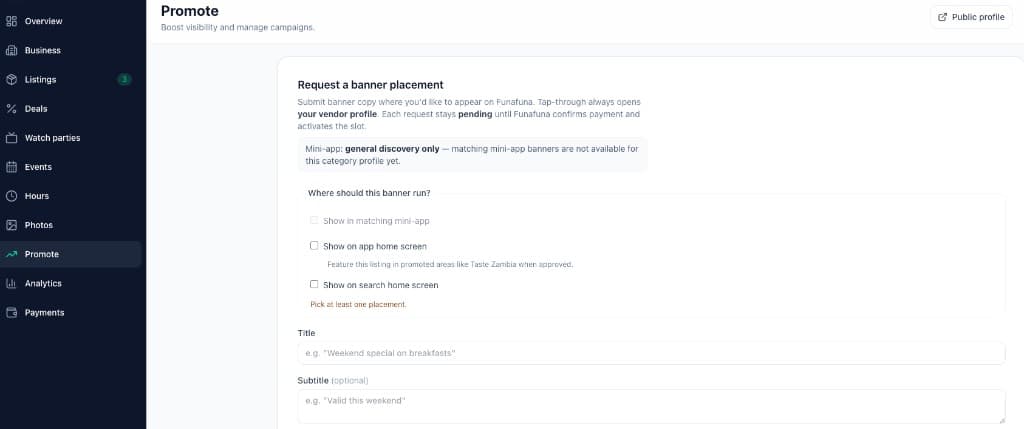
Open Promote to request a banner placement when Funafuna offers visibility options for your area or category. Add a title and subtitle, choose where the banner should run (such as the app home screen or search home screen), and submit your request.
Keep deals and promotions current. Expired offers confuse customers and reduce trust in your listing.
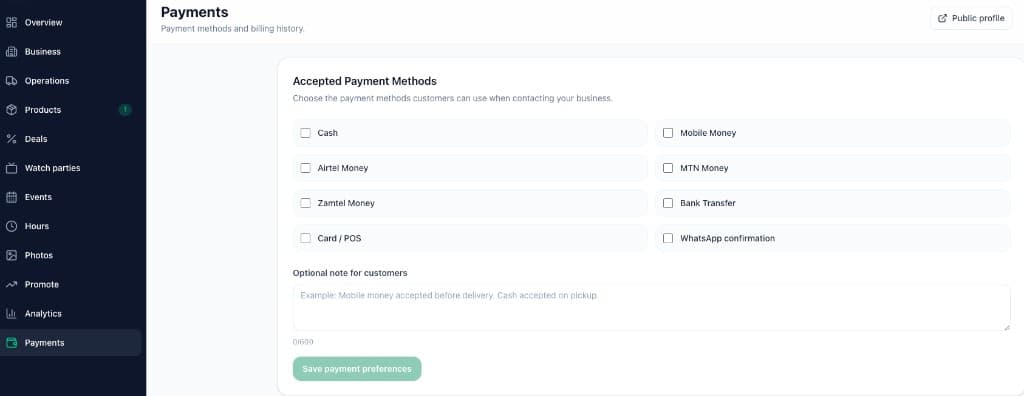
Open Payments to tell customers which payment methods you accept when they contact you. This is for payment preferences and instructions — customers pay you directly, not through Funafuna.
Select the methods you accept:
Use the Optional note for customers field to add short payment instructions — for example: Mobile money accepted before delivery. Cash accepted on pickup.
When you are finished, click Save payment preferences.
Before you finish, open your Public profile or tap View public profile from the dashboard header. Check that your listing looks correct on mobile — that is how most Funafuna customers browse.
Confirm your cover photo, hours, phone, WhatsApp button, payment preferences, and the products, menu items, services, or rooms you added. If something looks wrong, return to the matching dashboard section, save your changes, and refresh your public page.
Focus on the sections that matter most for your category.
Update rooms, amenities, stay requests, payment methods, photos, and hours so guests can browse rates and request stays.
Update products, prices, payment methods, photos, WhatsApp, and hours so shoppers can see what you sell before they visit.
Update services, appointment requests, payment methods, photos, WhatsApp, and hours so customers can book or message you easily.
Update menu items, prices, payment methods, photos, WhatsApp, and hours so hungry customers know what you serve today.
Start with Business — phone, WhatsApp, description, and address — then add a strong cover photo and accurate Hours. After that, add the section that fits your business type: rooms, products, menu items, or services.
Add at least one clear cover photo. Where supported, you can add up to 10 photos showing your storefront, team, products, rooms, or work.
Yes. Products, menu items, services, and room rates can include prices. Prices are optional for products and menu items if you prefer customers to ask on WhatsApp.
Contact Funafuna support on WhatsApp if your business category does not match what you do. Some category fields may not be editable directly from the dashboard.
Yes. Lodges, hotels, guest houses, motels, and backpackers can add room types, nightly rates, amenities, and stay booking requests from the Rooms section.
Yes. Grocery and retail businesses can list products individually or use Bulk add products to paste several items at once.
Yes. Enable Accept appointment requests in Services so customers can request a time. You can also list individual services with pricing.
Most updates appear on your public profile shortly after you save. Search results may take a little longer to reflect major changes.
Return to the same dashboard section, fix the detail, and save again. You can edit or remove products, menu items, services, and photos at any time.
Yes. Open Payments in the vendor dashboard and select the methods you accept, such as cash, mobile money, bank transfer, or card / POS.
Yes. Use the optional note field on the Payments page to add short instructions — for example when you expect mobile money or whether cash is accepted on pickup.
Continue learning with these guides.
Search for your listing on /business, open your business page, and submit a claim to manage your Funafuna profile.
Help more customers find your listing through accurate details, categories, and photos.
Respond quickly on WhatsApp and keep your number visible to convert Funafuna views into enquiries.